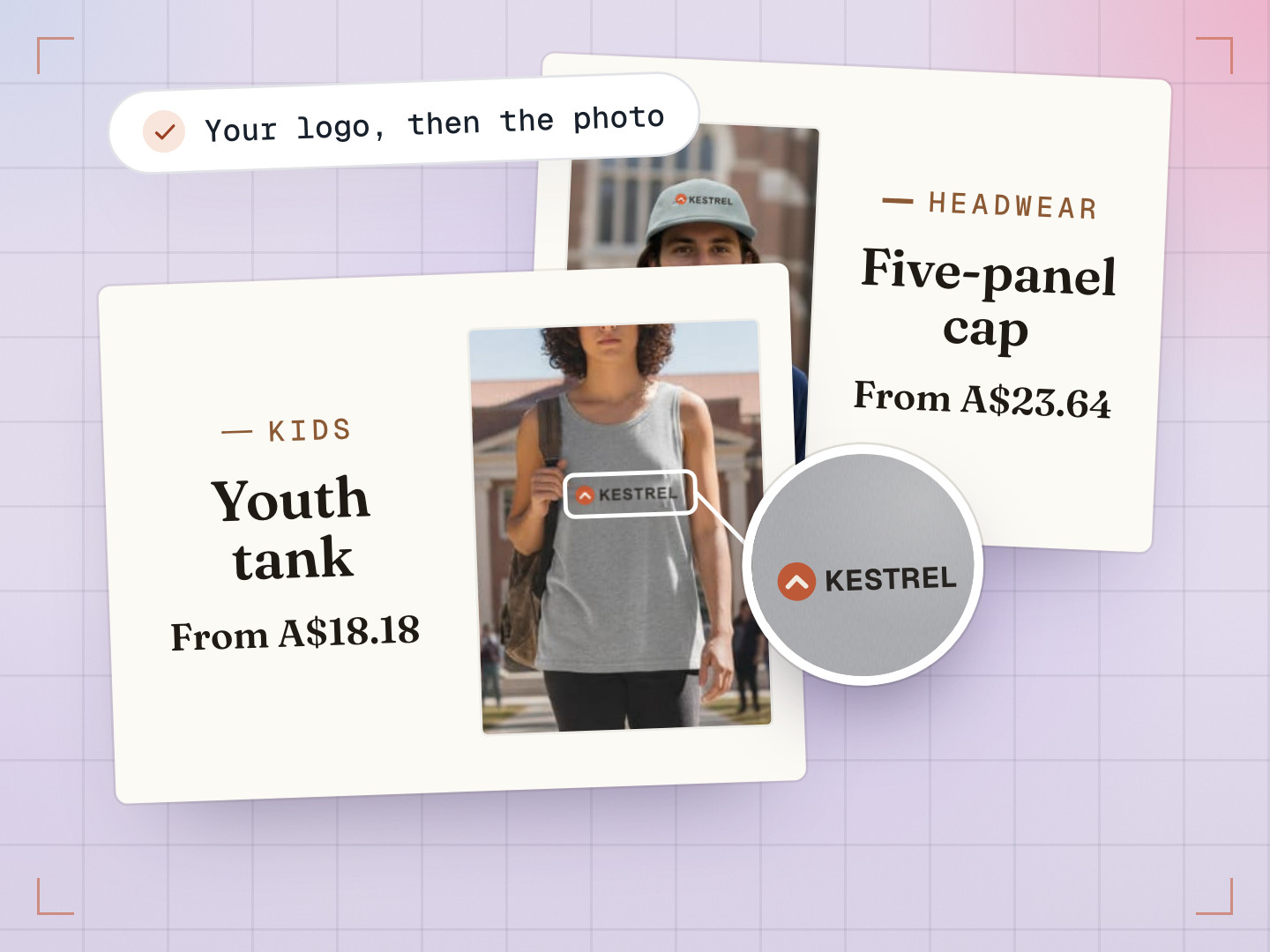
If you sell decorated products, you need mockups: a picture of the customer’s design on the real product, in the right colour, looking like a photo rather than a sticker. For years the professional way has been Photoshop. A designer builds a PSD with a smart object, a special layer you can drop artwork into, already set up with the right perspective, warp and shading. Swap the artwork and it lands on the product as if it had been printed there.
Smart objects work beautifully, with one catch: someone has to build a PSD for every product photo. Services like Dynamic Mockups made that much easier, first by rendering PSD templates through an API and now also with AI that maps a design onto an uploaded photo. For the DesignMint Studio SDK we wanted the realism built into the editor itself, with hands-on control and no PSD: you start from the product photo you already have, the studio’s AI turns it into a scene (studio, flat lay, lifestyle or on a model), and our engine reads that scene’s folds, light and texture. (This is the engine inside the DesignMint Studio SDK, so it works wherever the SDK runs. The Mockup Generator in DesignMint Commerce’s admin is a separate tool, with its own case study.)
What a smart object actually does
Strip away the Photoshop interface and a smart-object mockup does four jobs: geometry, folds, light and texture.
- Job 1GeometryBends the flat artwork to the product’s shape: perspective for the camera angle, warps for curves.
- Job 2FoldsPushes the artwork along the wrinkles and seams of the fabric.
- Job 3LightCarries the photo’s shadows and highlights onto the print.
- Job 4TextureLets the weave of the fabric show through the ink.
Our engine does all four from the picture alone. It reads each scene once and builds three things from it: the product’s outline, a map of its folds and shading, and a map of its fabric texture. Then your graphics card blends the artwork through those maps, live, while you drag it around.
The tools, in plain words
- Perspective: every print area is a four-corner shape you can tilt to match the camera angle.
- Curve: bends the print into an arc, for chest prints that follow a rounded body. (The engine also has ten more Photoshop-style warps, such as Bulge, Flag and Twist, that aren’t in the editor yet.)
- Wrap around: a cylinder mode for mugs and bottles.
- Fine-tune mesh: a grid you can pull point by point when a warp isn’t quite right.
- Fold warp, shadows and highlights: sliders for how strongly the artwork follows the fabric and the light.
- Fabric texture: a slider for how much of the fabric’s weave shows through the ink.
- In front: a mask for anything that should sit on top of the print, like a hand, a strand of hair or a hoodie cord.
The print method changes the look too. There are six: DTG, DTF or vinyl with a slight sheen, screen print, sublimation (where the dye takes on the garment’s colour), laser engraving on wood, leather, metal or glass, and UV print with gloss and a raised edge. The right one is picked automatically from the product’s printing technique.
One grey photo, every colour
AI can generate lovely lifestyle scenes, but generating every colour of every product separately is slow, expensive and inconsistent. The AI’s idea of your brand red drifts from one picture to the next.
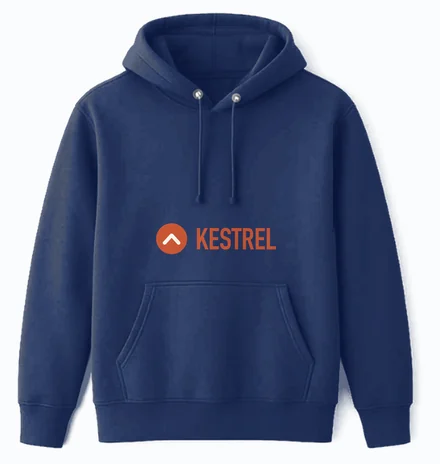
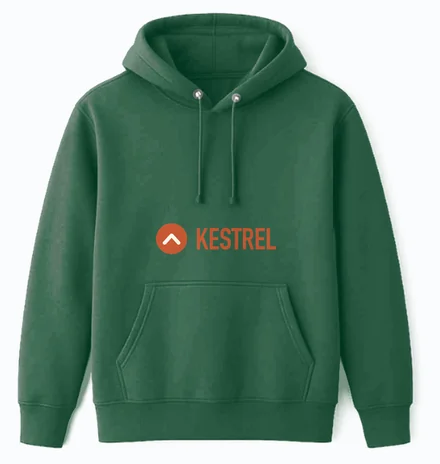
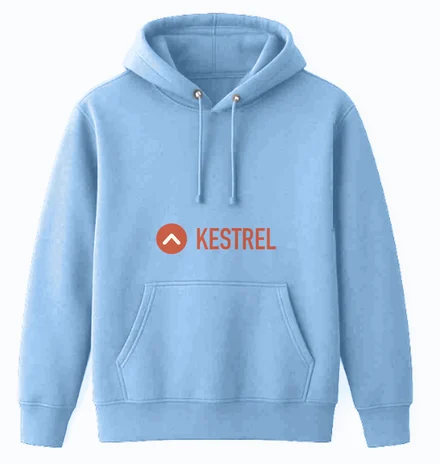
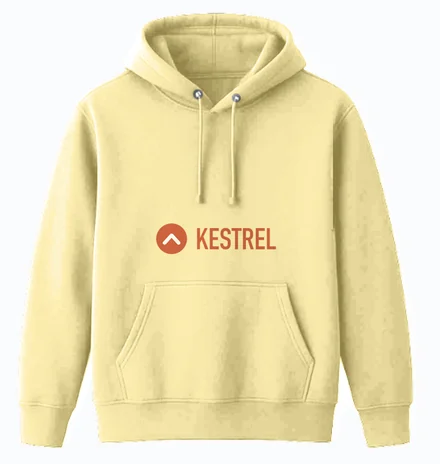
So we added a second way to make a preset, called Colorize. Instead of an AI scene for every colour, the AI makes one light-grey scene per design, and the studio recolours it live to each colour’s exact code, keeping the photo’s folds and texture.
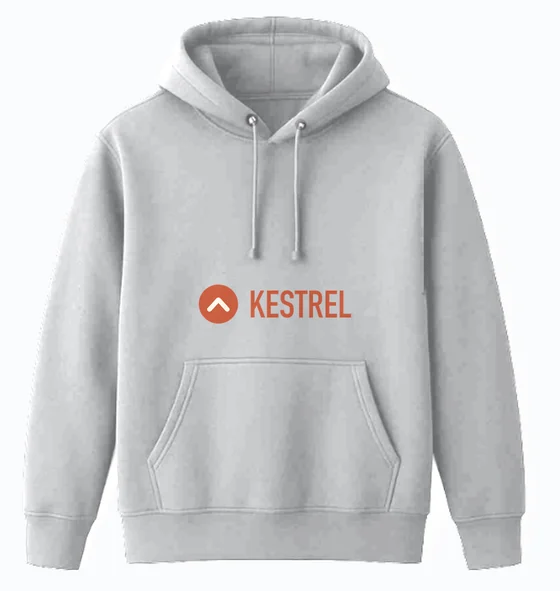
- Navy
- Forest
- Sky
- Pale yellow
- 3–4 ms
- for each extra colour, in our tests on an 848 × 1264 photo. Nothing extra is uploaded.
- Keeps every crease
- It recolours in OKLab, a colour space built around how people see brightness, so dark navy and pale yellow both keep their folds.
- Best on plain fabric
- Single-colour garments. Heathers, contrast trim and metallics still get an AI scene per colour.
Colorize is offered when every colour has a colour code. Picking only the garment was the tricky part. On a person, a simple “grey pixels” rule also grabbed dark hair and light jeans, which are close to grey too. The fix was an on-device AI selection model that clicks automatically at the centre of the print area to pick out the garment alone.
Presets: set it up once
A mockup setup is saved as a preset: the scene photo, a mask, and a small description of where each print goes. The heavy maps are rebuilt when the preset loads instead of being stored. A preset then appears on every product that uses the same photo, including copies of copies, so a scene set up once is reused on every clone of that product.
From there it scales. You can apply a preset to every colour at once, generate all of a colour’s designs as one photoshoot so the front and back show the same model in the same room, and download the whole set as one zip, organised by product, colour, decoration and design.
Bugs that taught us something
- The jeans that dimmed the T-shirt. On model photos, the outline also takes in other clothes, so light jeans raised the shading level and prints on a dark tee came out at about a third of their brightness. We measured the same garment across 14 real photos, capped the effect, and then excluded skin, which pulled the same way.
- A 0.001-pixel change that redrew everything. Switching colour re-measured a text box by about a thousandth of a pixel, which changed its fingerprint and redrew every mockup. Mockups are now stamped by when the artwork was rendered, so unchanged pictures stay put.
- Breaking it on purpose. The studio is checked by more than 30 automated browser test suites, most of them for the mockup work, and the team has deliberately broken the code more than 200 times to prove the tests catch each break.
- From prototype to product. Bringing the engine into the studio meant running its AI in a background worker, freeing graphics memory properly and recovering when the browser drops the graphics context, with pixel-by-pixel tests checking every print method.
How it compares with Dynamic Mockups
Dynamic Mockups is one of the best-known mockup services, and it’s very good at what it does. Here is an honest side-by-side, taken from their own site and documentation in October 2026:
| DesignMint Studio SDK | Dynamic Mockups | |
|---|---|---|
| Starting point | Your product photo, turned into an AI scene; no PSD needed | PSD templates with smart objects (their library or your own upload), plus MockAnything AI, which maps a design onto any photo you upload |
| Where it renders | Artwork placed, shaded and recoloured in your browser; AI scenes made on our servers | On their servers, through their web app, an embeddable editor, store integrations or the API |
| Colour variants | An AI scene per colour, or one grey scene recoloured to each colour code | Fills the smart object with a colour you provide; MockAnything offers real manufacturer colours and all variants in one go |
| Print looks | DTG, DTF, screen print, sublimation, laser, UV | Screen print, DTG, UV, laser engrave, deboss and more |
| Embroidery mockups | Not in the studio’s mockups (the Commerce admin’s generator has an embroidery finish) | Yes, with an embroidery effect |
| API and integrations | Part of the Studio SDK, in any React app; no public render API | Public API, plus Shopify, Etsy, Zapier and more |
Dynamic Mockups is the better fit if you want a public API to automate mockups from your own systems, rely on a large ready-made template library (they list more than 10,000 templates), or need embroidery mockups today. The DesignMint Studio SDK is the better fit if you already sell through the studio and want mockups made right next to the design: you set the perspective, curve and folds by hand, every colour of a plain garment can come from one scene, and the same people who take the order make the mockups.
What we learned
- Realism lives in the photo. If you can read its folds, light and texture, you don’t need a template.
- Colour, don’t regenerate. It’s faster, cheaper and stays on brand.
- Test by sabotage. A test you have never seen fail isn’t proven.
Common questions
What is a smart object mockup?
A Photoshop file with a special layer where artwork can be swapped in. The layer’s perspective, warp and blending make the artwork look printed on the product.
Do I need Photoshop or a PSD to make realistic mockups with DesignMint?
No. You start from your product photo, the studio’s AI makes a scene from it, and the engine builds its own fold, shading and texture maps from that scene.
Can I make mockups for every colour at once?
Yes. With a Colorize preset, one grey scene is recoloured to every colour that has a colour code. With an AI preset, applying it makes the missing colours in one go, five at a time.