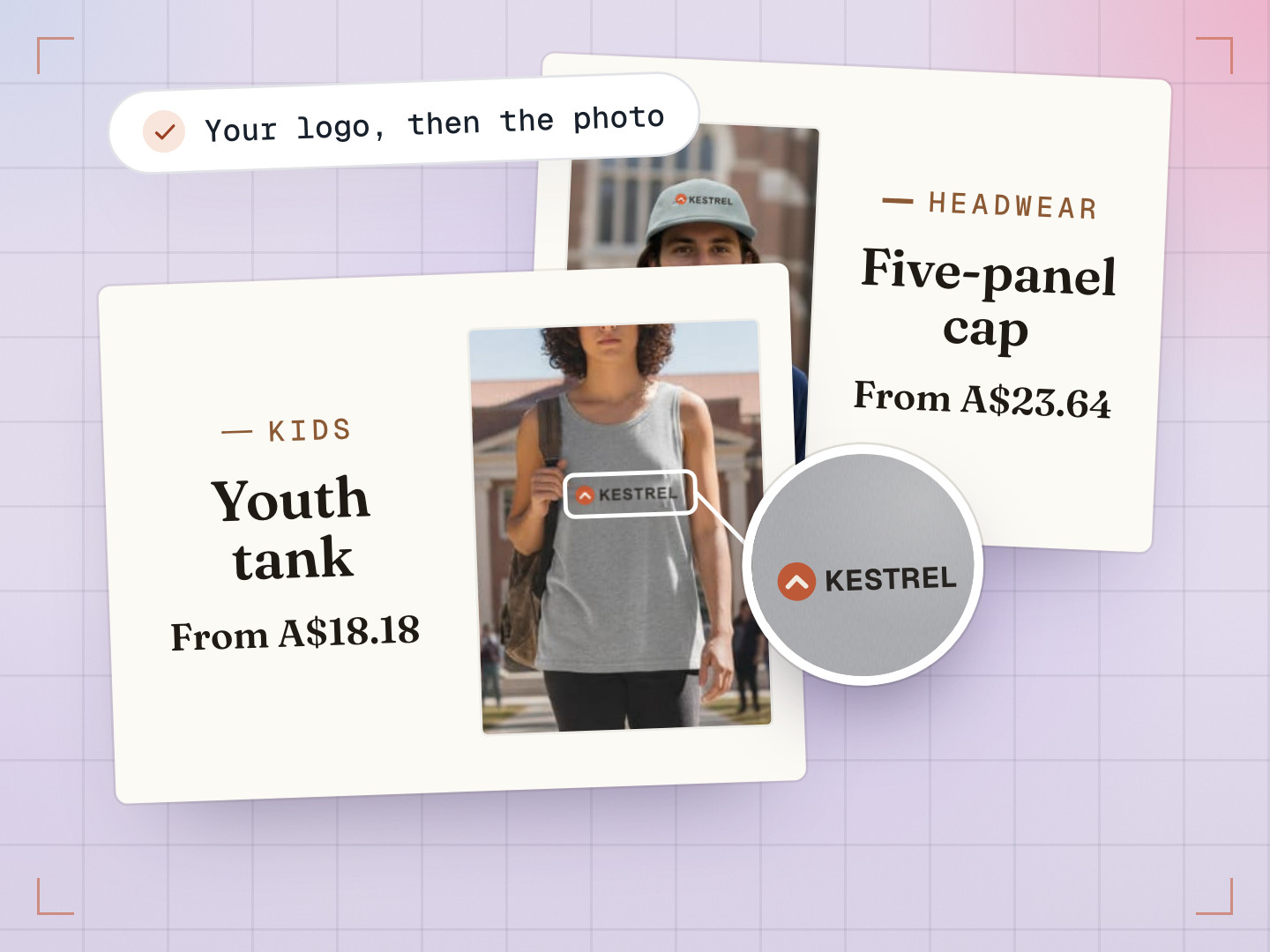
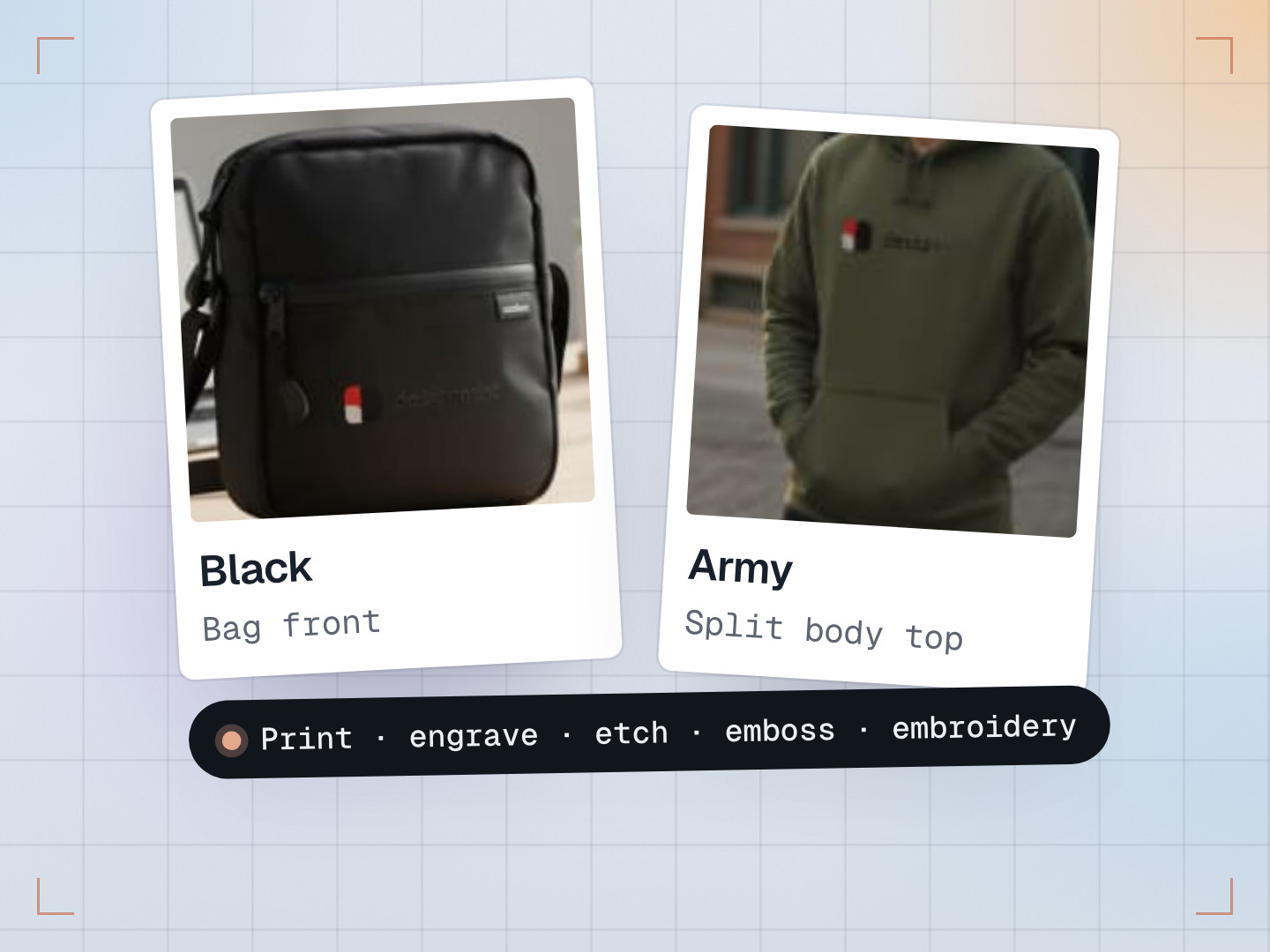
Every product customizer looks great in a demo, with a clean logo on a white T-shirt. Real orders are messier. One customer sends a layered Photoshop file. Another sends an SVG in the wrong colours. A third sends a logo that will print blurry, and slightly outside the print area. And the order is for twelve people, each with their own name on the back.
The product designer in the DesignMint Studio SDK, a React SDK that works with any stack, is built for the messy version. This is a look at how it handles real artwork, from the file a customer sends to the file the press receives.
Bringing in a Photoshop file
When someone uploads a PSD, the studio doesn’t flatten it into a picture. It reads the layers:
- Text layers become real, editable text, keeping their styling down to individual characters, with fonts matched where possible.
- Shape layers become vector paths, so they stay sharp at any size.
- Masks, clipping and common effects are kept, and 16 Photoshop blend modes are mapped across.
- Files up to 64 megapixels and 250 MB are accepted, including CMYK files from print designers.
One rule we’re strict about is pixel truth over a wrong render. Photoshop files often store layer data that doesn’t match what Photoshop actually shows, so before the studio trusts a shape or image layer, it checks it against the file’s own flattened image.
- Text layerTEAM NAME
Check Is the text plain, or warped, vertical or on a path?
Plain text Editable textStyling kept down to single characters. A missing font shows as a stand-in until it’s uploaded.Warped, vertical or on a path An imageBrought in as a picture of the text. - Shape layerCrest
Check Render it, then compare it with Photoshop’s own flattened image.
Match proven Vector pathStays sharp at any size.Can’t prove a match Exact pixelsKept as an exact image instead of a wrong redraw. - Image layerPhoto
Check Do its stored pixels agree with what Photoshop showed?
They agree Used as storedThe layer’s own pixels come straight in.They clearly disagree RebuiltRedrawn from Photoshop’s own image.
Recolouring SVGs
SVG logos are the friendliest files in print, but they rarely arrive in the right colours. The studio lists every colour used in an SVG, gradients included, and lets you swap any of them, pick one with an eyedropper (in Chrome and Edge), or choose from 322 gradient presets. It changes colours rather than reshaping the artwork, which is exactly what most print jobs need: the same logo, in the shirt’s ink colours.
Print checks that catch problems before the press
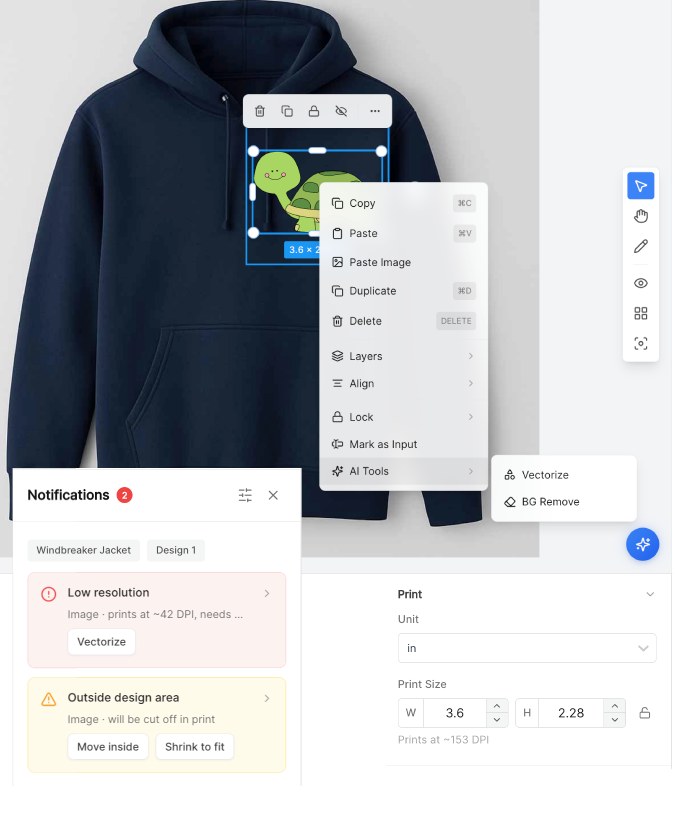
Every design gets a preflight check, the print trade’s word for checking a file before it’s produced. The studio flags six kinds of problem, and every one comes with a one-click fix:
- Can’t be embroidered (serious)An embroidery (DST) file is on a product that isn’t embroidered.Remove element
- Can’t be stitched (serious)The product is embroidered, and only DST files can be stitched.Remove element
- Low resolution (serious)The artwork will print blurry at its current size.Reduce sizeVectorize
- Outside design area (warning)Part of the design falls outside the print area.Move insideShrink to fit
- Near the trim edge (warning)It’s too close to where the product is cut.Move insideShrink to fit
- Font license unverified (warning)Text uses a font whose licence couldn’t be confirmed.Remove element
The resolution rule is easy to get wrong, so the studio measures the artwork’s real dots per inch at its printed size and only flags it well below the product’s target, usually 300 DPI. A poster deliberately printed at 150 DPI doesn’t nag, but a logo stretched to four times its size does. Print areas are drawn in real units, inches, centimetres or millimetres, with bleed and safety lines, so the check measures the actual print, not the screen.
Twelve names, one order: multiple decorations
A decoration is one version of the artwork across all of a product’s print areas, front, back and sleeve together. A product can carry up to 20 of them, and each becomes its own cart line. That’s how a team order works: the same hoodie, the same front logo, and a different name and number on the back for every player.
For a full team, a CSV file does the typing. Each row becomes a decoration, up to the limit of 20, with a column for its name and one for each personalisation field.
Studio, form or product details
Not every customer should land in a design editor, so each product chooses how buyers meet it:
- Studio: straight into the full editor.
- Form: the buyer stays on the order page and fills in fields, like a name and a phone number on a business card. Admins decide which parts can be resized or moved, and which stay locked.
- Studio + Form: the form first, with the editor one click away.
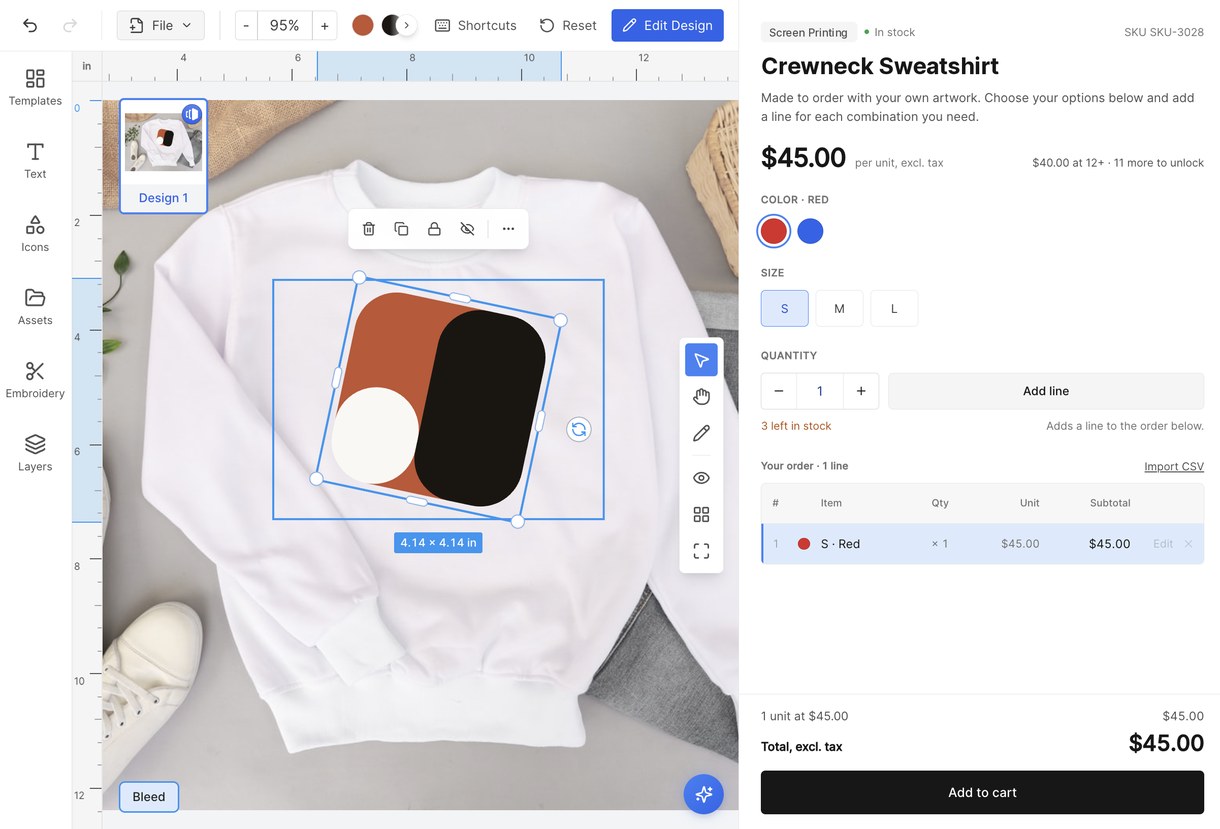
In the Form modes, buyers land on the product details mode: an order-first page with a gallery, colour and size pickers, a quantity stepper and an order table that adds up each line, plus an “Import CSV” button for bulk orders. The studio is there when it’s needed, and out of the way when it isn’t.
Embroidery that speaks thread
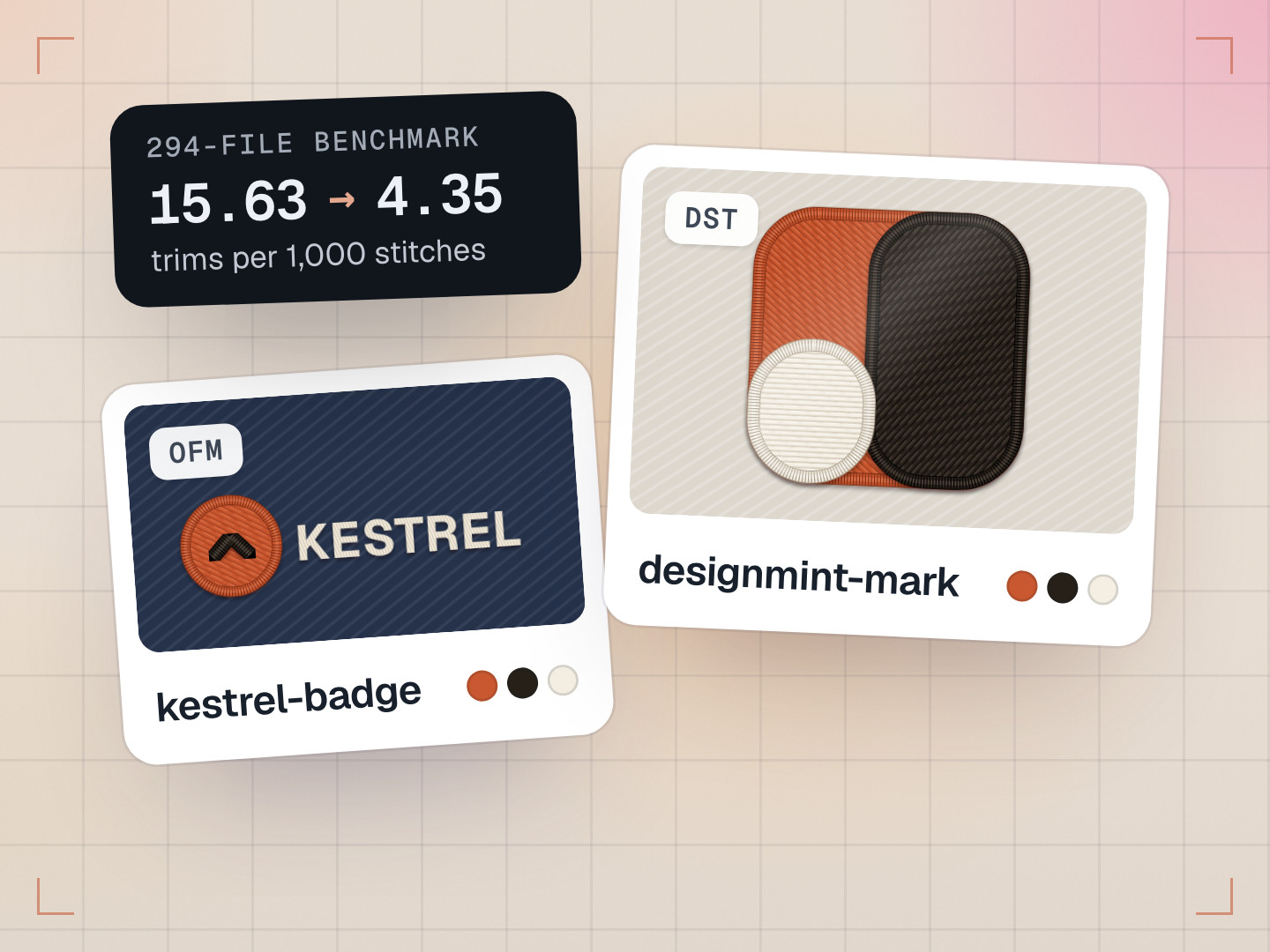
Embroidery isn’t printed in colours, it’s sewn in threads, and every thread brand has its own numbered catalogue. The studio matches each colour to the nearest thread in six popular thread catalogues, using a library of 169 reference colours, and picks the closest thread using CIEDE2000, a formula built to match how people perceive colour difference. It can also match thread colours straight from a reference image, and it reads uploaded DST embroidery files directly, stitch count included.
What the press receives
- A layered vector PDF, with text converted to outlines and the vector artwork written in CMYK ink for print products (photos stay as images). Pure black becomes 100% K on a single plate, the way printers want it.
- SVG for vector workflows.
- A true-size PNG with the DPI written into the file, so it prints at the right size without guesswork.
- The customer’s own DST embroidery file, passed along with its stitch count and thread colours.
Admins can download a proof of any decoration as a zip, in each format the product allows: PNG, PDF or SVG.
How it compares with other product customizers
There are good customizers on the market. Zakeke includes 3D preview, AR and print-ready files on every plan, with plans from $59 a month billed annually. Customer’s Canvas opens layered PSD templates in its design editor, with text, shapes and smart layers, and offers a preflight tool that fixes files automatically.
What we focused on is the production side, built into one studio: PSD import that checks every shape against Photoshop’s own image, print checks with one-click fixes, up to 20 decorations per product with CSV import, thread matching for embroidery, and CMYK vector PDFs.
What we learned
- Never quietly redraw a customer’s artwork. Prove it, or keep the pixels.
- Warn in proportion. A check that nags at every poster gets ignored.
- Design for the order, not the demo: twelve names on twelve hoodies is the normal case.
Common questions
Can customers upload Photoshop files?
Yes. PSD files up to 64 megapixels and 250 MB are supported. Text comes in as editable text (warped, vertical or on-a-path text comes in as an image), and shape layers stay vector wherever they can be proven to match.
Can I change the colours of an SVG logo?
Yes. Every colour in the SVG, gradients included, can be swapped from a palette, or picked with an eyedropper in Chrome and Edge.
What print files does DesignMint export?
A layered vector PDF with the vector artwork in CMYK ink, SVG, and a true-size PNG with DPI written in. A customer’s uploaded DST embroidery file goes along with the order, with its thread colours.