Every decorator needs product photos with the client’s artwork on them, for a quote, a product page or a social post, and usually by today. There are two common shortcuts, and both have problems. Pasting a logo on top of a photo looks like a sticker: flat, too sharp, ignoring the folds and shadows. A photo shoot looks great, but it takes days and costs real money for every new design.
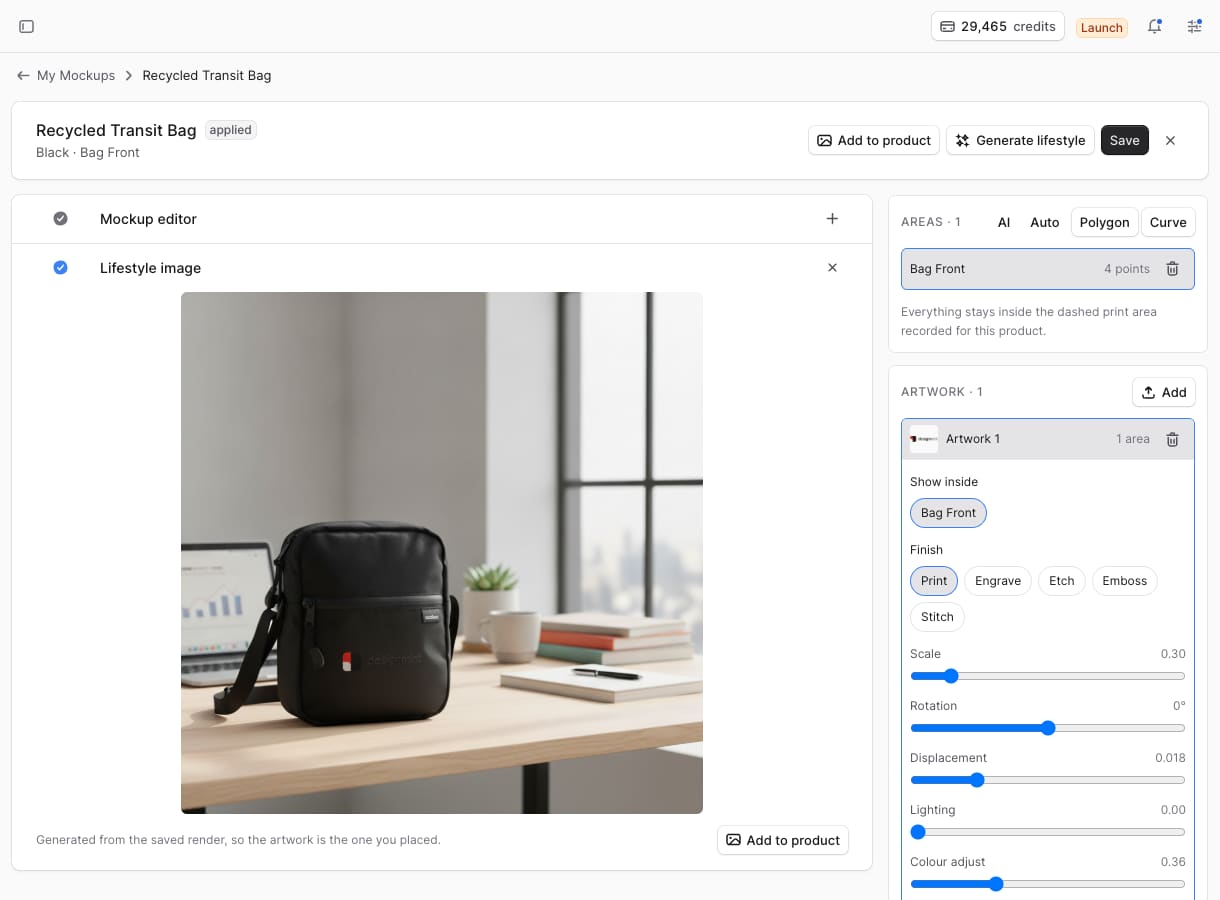
The mockup generator sits in between. It places the artwork onto your actual product photo so the fabric texture, folds and lighting show through, as if the design had really been printed. Then, if you like, it turns that into a lifestyle photo and attaches it straight to the product. (This is the generator in DesignMint Commerce’s admin. The DesignMint Studio SDK has its own mockup engine, built into the studio itself, with its own case study.)
What makes a mockup look real
Three things give a fake mockup away: the artwork ignores the fabric, it ignores the light, and its colour sits on top of the material instead of in it. We fix each one with a “map” made from the product photo itself:
- BeforePasted on topFlat and too sharp, so it ignores the folds and shadows.
- Map 1DisplacementMade from the photo’s fine detail, it nudges the artwork over folds and seams.
- Map 2LightingA crease that is dark on the fabric is dark on the print too.
- Map 3Colour pick-upThe fabric’s colour shows through, the way ink soaks in.
All three come from ordinary image filters, so there’s nothing extra to prepare for each product.
There are five finishes, because not every logo is printed: print, engrave, etch, emboss and embroidery each change how the artwork reacts to the surface.
- PrintInk on the surface
- EngraveCut into it
- EtchA frosted, matte mark
- EmbossRaised from it
- EmbroideryStitched in thread
The artwork goes onto a curved surface instead of a flat one, so a logo wraps around the side. The generator spots round products and switches to the curve by itself.
Why it renders in your browser
The rendering runs in WebGL, the same graphics technology browser games use, right inside the admin. The finished image is saved exactly as you see it. We thought about re-rendering on the server instead, but that would produce a slightly different, flatter image than the one you just approved. We’d rather save the exact picture you said yes to.
There was one technical catch. Browsers protect you from pages that copy images from other websites, so a canvas that draws a photo from another site refuses to save. To get around that safely we added an image proxy that fetches photos for the editor. A proxy like that can be misused to reach places it shouldn’t, so ours only accepts normal web addresses, refuses internal and private networks, only returns images, caps files at 25 MB, and only works for signed-in users on the right plan.
Keeping AI away from the logo
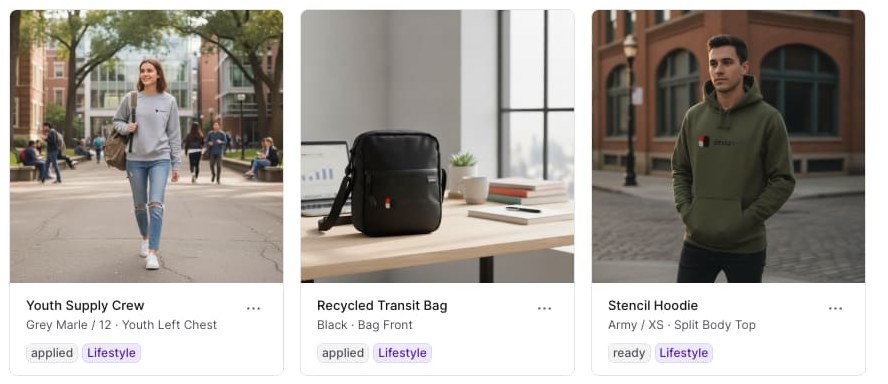
Lifestyle photos are where AI helps most, and where it can do the most damage. Image models like to “improve” things, and a slightly redrawn logo is a ruined mockup.
So lifestyle generation only ever starts from the saved, finished mockup, never from the plain product photo. The image model only accepts prompts of up to 50 words, so we spend almost all of them protecting the decoration: same colours, same artwork, same position and size, don’t add or redraw any text or graphics, change only the background, lighting and camera angle. The scene choices are shared with lookbooks, so your images look consistent across both.
Small decisions that save headaches later
- Every mockup saves everything needed to reopen it exactly as it was, down to each slider value, even if the product is photographed again later.
- If a product variant is deleted, its mockups stay. Losing a client’s approved mockup because someone tidied up the catalogue would be a bad day.
- Applying a mockup updates both places that matter: the product’s images in the admin, and the colour images shoppers see in the store.
What we learned
- Realism comes from the photo, not from effects. The best maps are made from the picture you already have.
- Save what the person approved, not a re-creation of it.
- When you use AI on branded products, spend your prompt protecting the brand.
Common questions
Do I need special product photos?
No. The generator works from your existing product photos and works out everything else from them.
Can mockups go straight onto my product pages?
Yes. Applying a mockup attaches it to the product and to its colour, so shoppers who pick that colour see it.
What does a mockup cost?
Each mockup uses 10 credits from your wallet.